In ReferralStack, configuring your campaign settings allows you to fine-tune how affiliates earn rewards for promoting your business. These settings form the core structure of your referral program, helping you control how conversions are tracked, rewarded, and scaled.
With ReferralStack, you can easily customize your campaign settings to match your goals—whether you want to boost sales, increase signups, or build stronger brand awareness.
We’ll walk you through each setting so you can create a well-optimized campaign that motivates your affiliates and tracks performance seamlessly.
You can configure your campaign using both basic and advanced settings to tailor it to your specific needs.
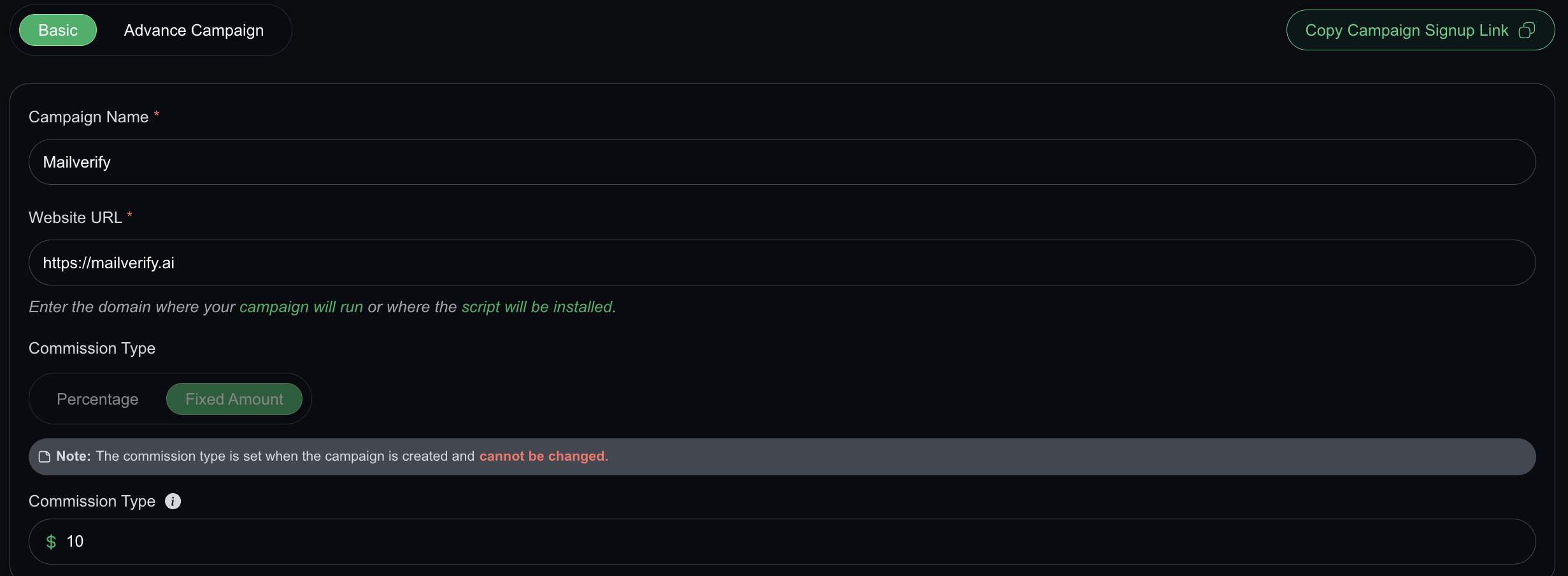
Specify the Campaign Name
The campaign name helps you identify your referral program. For example, if you’re running a referral program for a spring promotion, you might name it: “Spring Sale Referral Program”.
Enter the Website URL
This URL is the domain where your campaign will run or where the referral script will be installed (e.g., https://www.yourstore.com). Make sure to enter the exact URL where your customers will be referred to.
Choose the Commission Type
Decide how you want to reward your affiliates:
Percentage: Affiliates earn a percentage of each sale.
Fixed Amount: Affiliates earn a fixed amount per referral.
Choose the option that best aligns with your program goals.
Specify the Commission Amount
Enter the exact value for the commission based on your chosen type:
Percentage: Enter a number like 10 for 10%.
Fixed Amount: Enter the dollar amount like $15.
Configure Permissions and Privacy
Under Advanced Settings, you can manage how affiliates join and what they can see:
Require Approval to Join this Campaign: Enable this to manually approve affiliates to join the affiliate program. This helps maintain the quality of your affiliate partners.
Collect Additional Affiliate Details on Signup: Turn this on to ask affiliates for extra information, like their social media handles, to better understand their promotional methods.
Hide Customer Emails from Affiliates: Enable this to protect customer privacy by preventing affiliates from seeing customer email addresses in their portal.

Set the Minimum Payout Amount
Specify the minimum earnings an affiliate must reach before they can receive a payout. This helps you manage payout frequency and reduce small transactions. For example, if you set the minimum to $50, affiliates will only be paid once their earnings reach that amount. Set it to 0 to pay out any earned amount.
Set the Cookie Duration
Define how long a referral link remains active after a click. For example, a 30-day cookie duration means if a user clicks a referral link and makes a purchase within 30 days, the affiliate gets credit for the sale.
Select Allowed URL Parameters
Choose which URL parameters your affiliates can use in their referral links. This controls how they can customize their links when promoting your campaign. For example, you can allow parameters like ?ref=, ?via=, or ?aff=.
Set the Payout Term
Choose how many days after a sale the affiliate will receive their payout. This delay helps account for potential returns or cancellations before paying commissions. For example, selecting Net-30 means affiliates get paid 30 days after a successful referral.
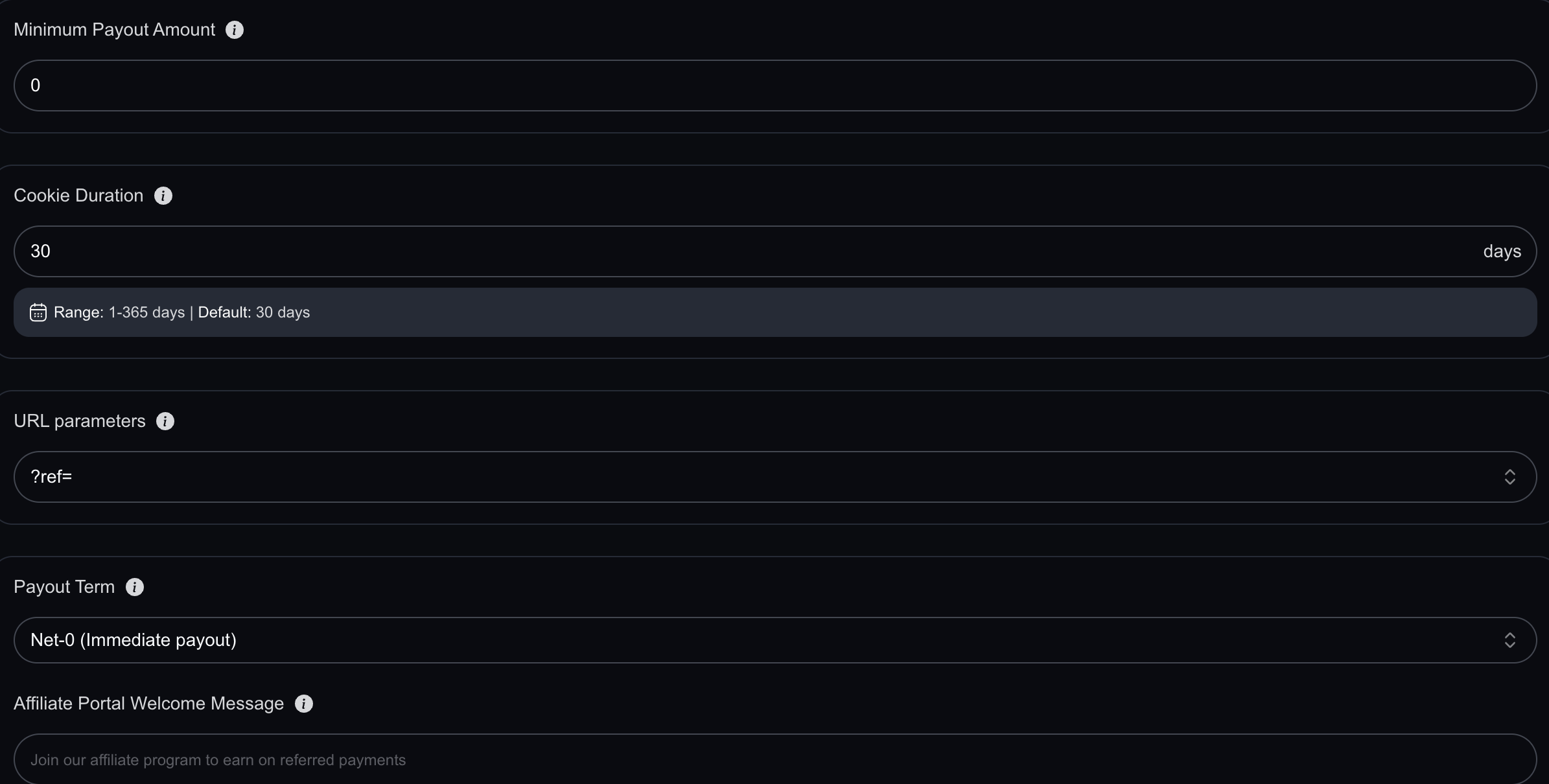
Add Affiliate Portal Welcome Message
Write a welcome message that affiliates will see when they log into their portal for the first time. This is a great way to motivate them and share important next steps. For example: “Welcome to our referral program! We’re excited to have you on board. Share your unique link to start earning rewards.”
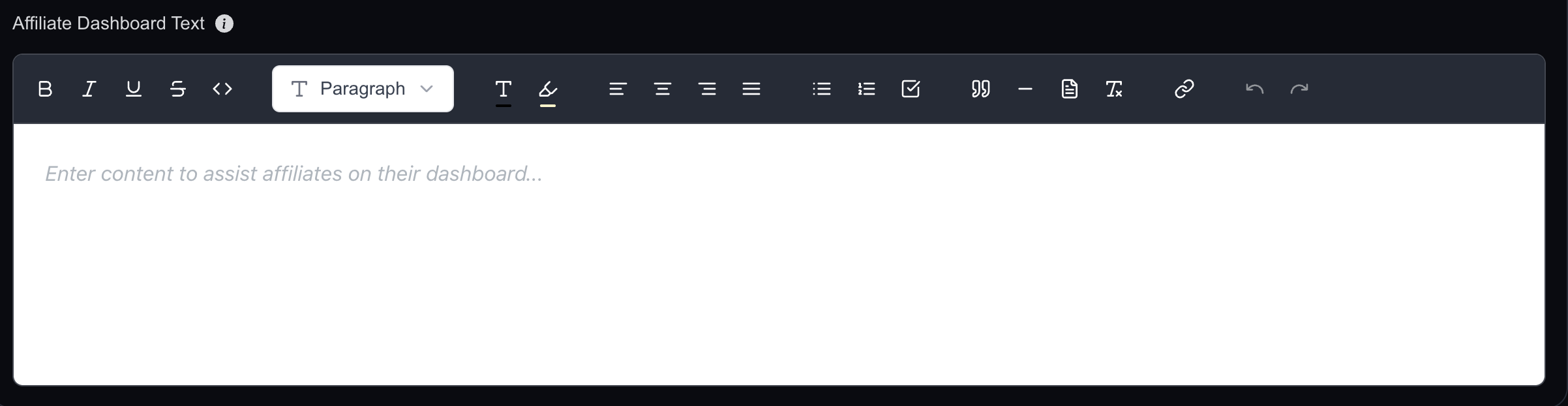
Add Affiliate Dashboard Text
Use this space to add helpful content to the affiliate dashboard. You can include promotional tips, program rules, or links to your terms and conditions to keep affiliates informed and engaged. For example: “Be sure to share your referral link on social media and email for best results. Don’t forget to review our Terms & Conditions.”
Your campaign setup is now complete! If you have any questions or need assistance, feel free to reach out to us anytime — we're here to help.
Now that your campaign is set up, the next step is to customize the experience for your partners. Learn how to brand your affiliate portal by following our guide on customizing your affiliate portal.
